📄 Download a PDF version of this guide here.
Overview
In the School Portal, School Admins can now replace one student with another in an existing tutoring time slot. The student leaving is dropped, and the new student takes their place in the same slot with the same tutor on a specified date. The number of available slots does not change. For schools with double dose seats, both tutoring time slots are maintained.
Regular Single Session Replacement
-
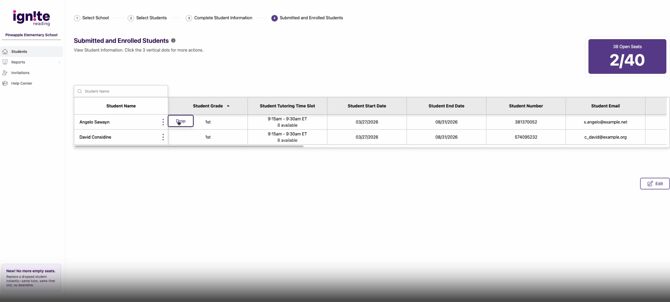
In the Submitted and Enrolled Students table, click on the three dots next to the student you wish to drop. Click on Drop.
-
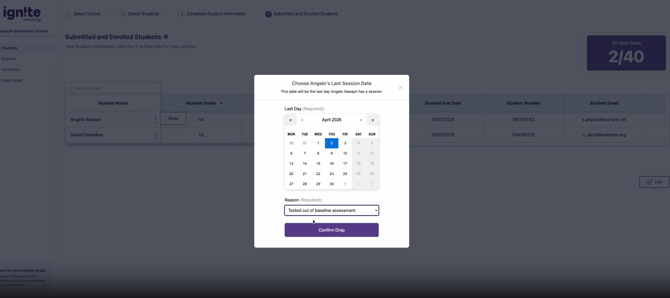
Choose the Drop Date and Reason, then select Confirm Drop.
-
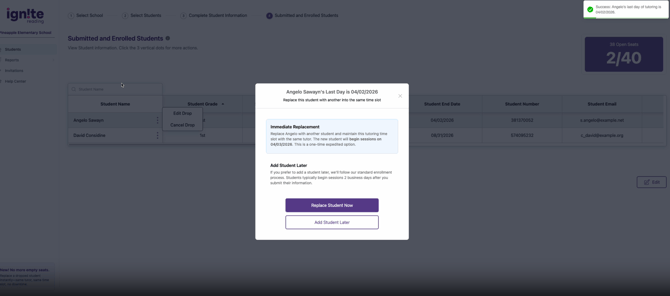
On the next screen, select Replace Student Now.
-
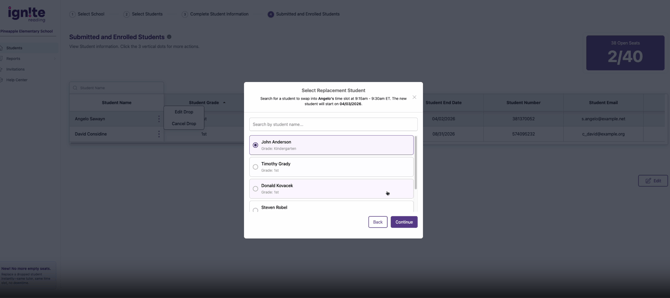
Search for the new student by name to select them and click Continue.
Please note: the new student must already be shared with the Ignite Reading application via Clever or Classlink.
-
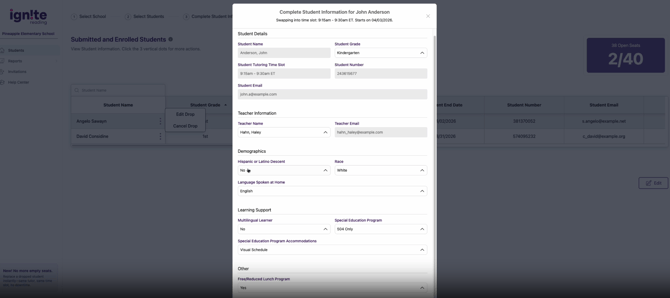
Complete the required student information for the new student in the next screen. Click Save to submit the replacement.
-
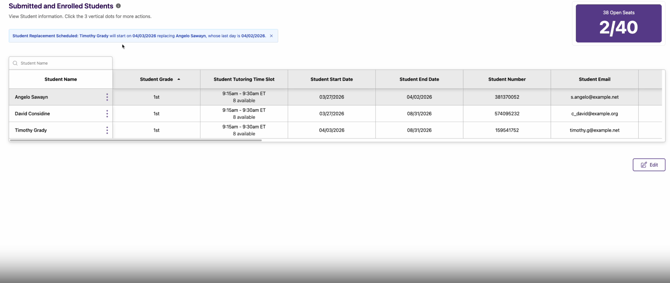
Confirm the result in the updated Submitted and Enrolled Students table.
Double Dose Schools
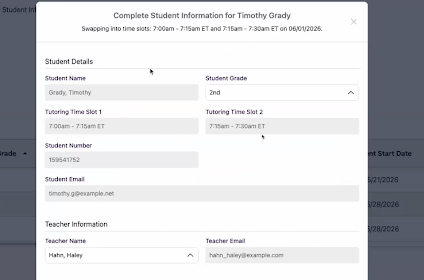
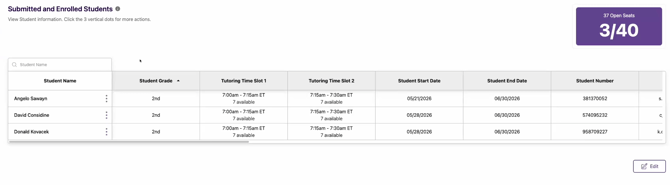
If your school has double dose seats, meaning students receive two tutoring sessions a day, the replaced student takes over both time slots and both tutors at once. The steps to replace a double-dose student are the same, and both tutoring time slots are displayed throughout the replacement flow.
- In the Submitted and Enrolled Students table, both tutoring time slots are listed.
-
In the “Complete Student Information” form for the replacement student, both tutoring times are listed.